Crypto app security checklist: 2FA, alerts and the settings people skip

Many crypto thefts don’t start with a genius hacker. They start with a convincing fake login page or a message from “support,” and often go unnoticed because nobody switched on alerts. The precautions that stop them are boring, but most only need to be set up once.
Good crypto app security closes the doors attackers try first, and it helps you spot trouble early if something does go wrong. Below is a checklist you can finish in about twenty minutes with a coffee. It won’t make anything impossible to break, because nothing is, so the goal is to make you a difficult target.
TL;DR
- Stolen crypto usually can’t be recovered, so prevention does most of the work.
- Use a long, unique password stored in a password manager, and turn on 2FA with an authenticator app or security key. Skip SMS codes.
- Store your backup codes offline, away from your phone, before you need them.
- Switch on login and transaction alerts, and review your active sessions every few months.
- Protect what surrounds the app (your email, phone and SIM), and write down a lost-phone plan.
Four ways things usually go wrong
Security advice usually fails because it’s either too vague (“be careful online”) or too heavy (“build a hardware-isolated vault”). Most people need something in between: a handful of settings, in a sensible order, that cover the usual ways accounts get taken over. These are the common scenarios:
- Someone gets your password from a data leak on another site and tries it on your crypto app.
- Someone tricks you into typing your login into a fake page.
- Someone takes over your phone number and uses text messages to reset your account.
- You lose your phone and have no plan for what happens next.
Every step below blocks at least one of these. If you’re wondering how to secure crypto account access in the simplest possible way, start at the top and work down.
Step 1: Lock the front door with a proper password
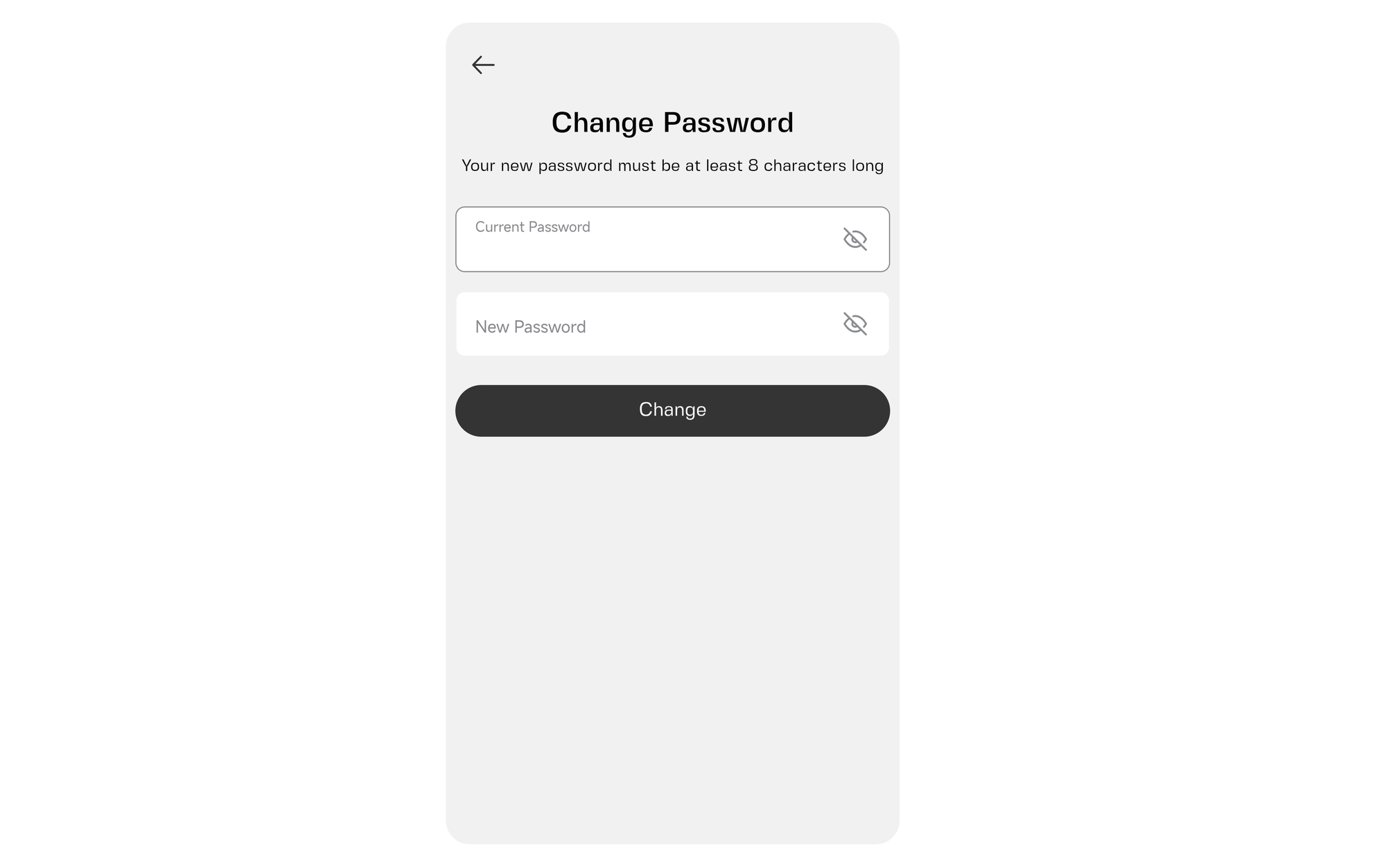
Your password is the first thing anyone will try, so it’s worth getting right.
Make it long, unique and boring to guess. Length beats cleverness. A long passphrase made of several unrelated words is easier to remember than “P@ssw0rd!” and much harder to crack. The rule that matters most is never reusing it. If the same password protects your crypto app and an old online store, a leak at that store becomes a problem for your crypto app security.
Use a password manager. A manager such as 1Password, Bitwarden or KeePassXC generates and stores a different password for every service, so you only need to remember one strong master password. It also helps you spot fake sites, because it won’t autofill on a page that isn’t the real address. If you’ve never used one, this is one of the highest-impact changes on the list.
Change your password if there’s any doubt. If you’ve ever used your crypto app password anywhere else, change it now. The same goes if you’ve typed it on a device you don’t fully trust.
Step 2: Turn on two-factor authentication, and back it up
Two-factor authentication (2FA) means a stolen password alone isn’t enough. To log in, you also need a second proof, usually a short code from an authenticator app. If 2FA is already on, check which method it uses. These are the options you’ll usually see.
Recommended: Authenticator apps
Apps like Google Authenticator, Authy or 2FAS generate a new time-based one-time password (TOTP) every 30 seconds, offline, on your device. Because the codes never travel over the mobile network, SMS interception and SIM swaps are out of the picture. That’s why authenticator apps are the preferred 2FA method on Clapp.
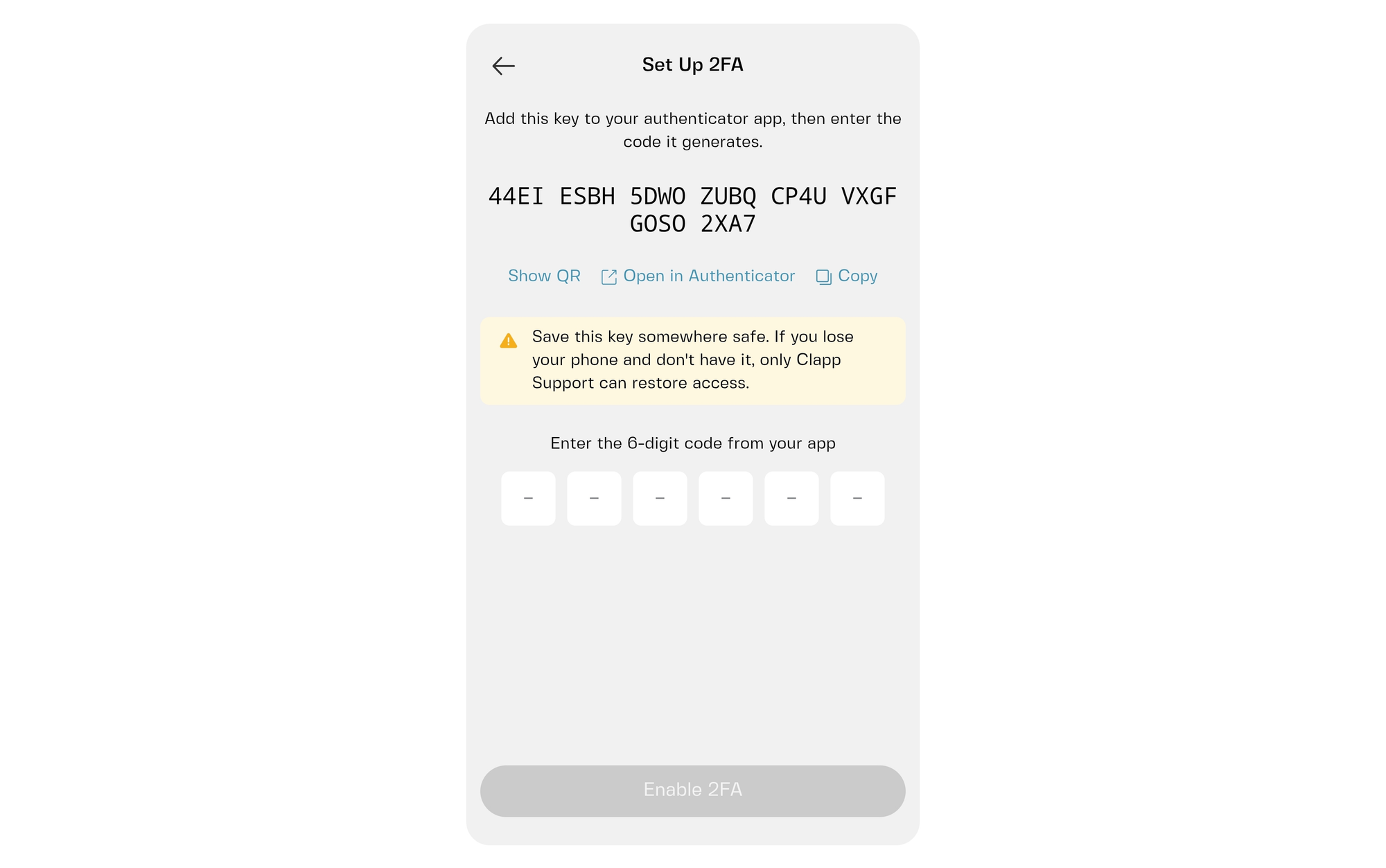
When you set one up, you scan a QR code from the platform that carries a shared secret key. Each code is calculated from that key and the current time, and the platform’s server runs the same calculation, so both sides arrive at the same 6-digit number. One limit worth knowing: an authenticator can’t stop you from typing a code into a fake login page, which is why the phishing habits in step 5 matter.
Back up the authenticator before you need it
If your phone dies and your authenticator lived only on it, you can be locked out of your own account unless you have a backup or another recovery method. When you set up 2FA, the app usually shows a setup key or a set of backup codes. The setup key lets you recreate the authenticator on a new phone, and backup codes work as one-time passes. Do this once:
- Write the codes on paper, or save them in your password manager’s secure notes.
- Store them somewhere separate from your phone, like a drawer at home.
- Don’t screenshot them into your camera roll or email them to yourself.
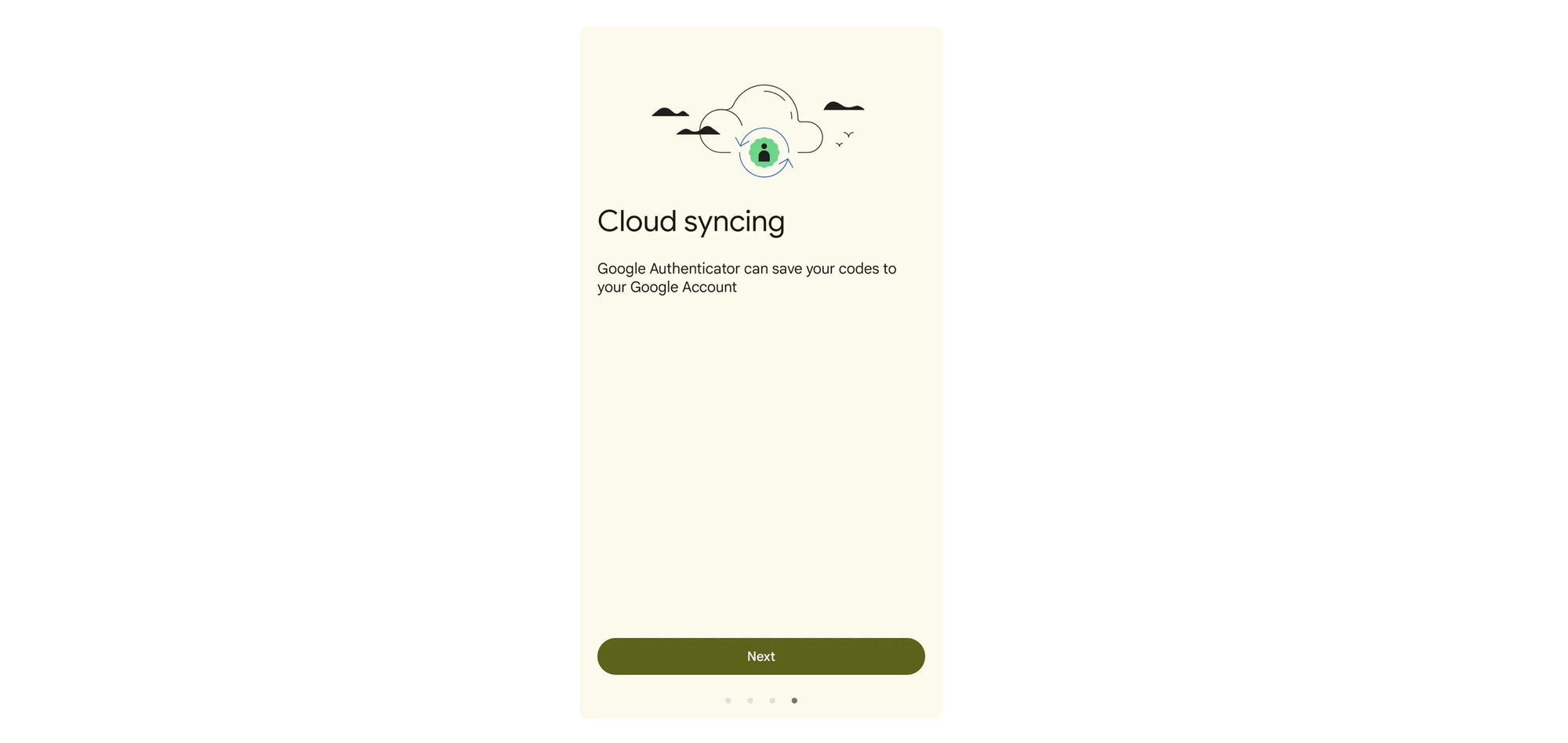
If you’re locked out without backup codes, you may still be able to restore your authenticator from a cloud backup, or you can contact the app’s support team, prove your identity and have 2FA reset. Some authenticator apps can also sync across your devices with an encrypted backup. That’s handy, but protect that backup account with a strong password and its own 2FA.
Recommended: Security keys and passkeys
These are physical USB or NFC keys like a YubiKey, or passkeys built into your phone or laptop, that require a tap or a biometric check. They’re the strongest option where a platform supports them. Even if an attacker has your password, or has hijacked your phone number (more below), they still can’t log in without the key. And because a key only responds to the genuine site’s address, a fake login page can’t use it.
Not recommended: SMS codes
Text messages aren’t end-to-end encrypted, and they’re tied to a phone number that can be hijacked through a SIM swap. In a SIM swap, attackers gather your personal data from leaks, social media or phishing and use it to impersonate you. They contact your mobile carrier, claim you lost your device, and ask to move your number to a new SIM card or eSIM they control. That gives them your incoming calls and texts, while your real phone loses cellular service.
On platforms that rely on SMS, criminals can then often use “Forgot password” to reset your login and reach your funds. That’s why Clapp doesn’t offer 2FA by SMS and uses authenticator apps instead. An authenticator generates codes on your device and doesn’t depend on your phone number. With a security key or passkey, there’s no code for anyone to trick you into typing.
Step 3: Switch on alerts so you hear about trouble first
Alerts are one of the settings people skip most, and they’re the ones that give you an early warning. Go through your app’s notification and security settings and look for anything like these:
- Login alerts: a message when someone signs in, or signs in from a new device or place
- Transaction notifications: a message when money or crypto is withdrawn, received or moved
- Security change notices: a message when your password, 2FA or email is changed
Choose the notification channel carefully. Push notifications and email both work, but make sure the email account that receives them has its own strong password and 2FA. If someone controls your email, they can often reset everything else.
Then do the one thing that makes alerts useful: read them. If you get a login alert you don’t recognize, treat it as real until proven otherwise. Change your password, terminate your other sessions (step 4) and contact support.
If you also borrow against your crypto, the same set-it-once habit applies to price alerts. Our guide to LTV alerts and collateral top-ups walks through it.
Step 4: Review your connected devices and sessions
Many of us log in on a new phone or laptop and leave the old sessions open. That’s a real risk: an old browser session or saved auto-fill details is an open door.
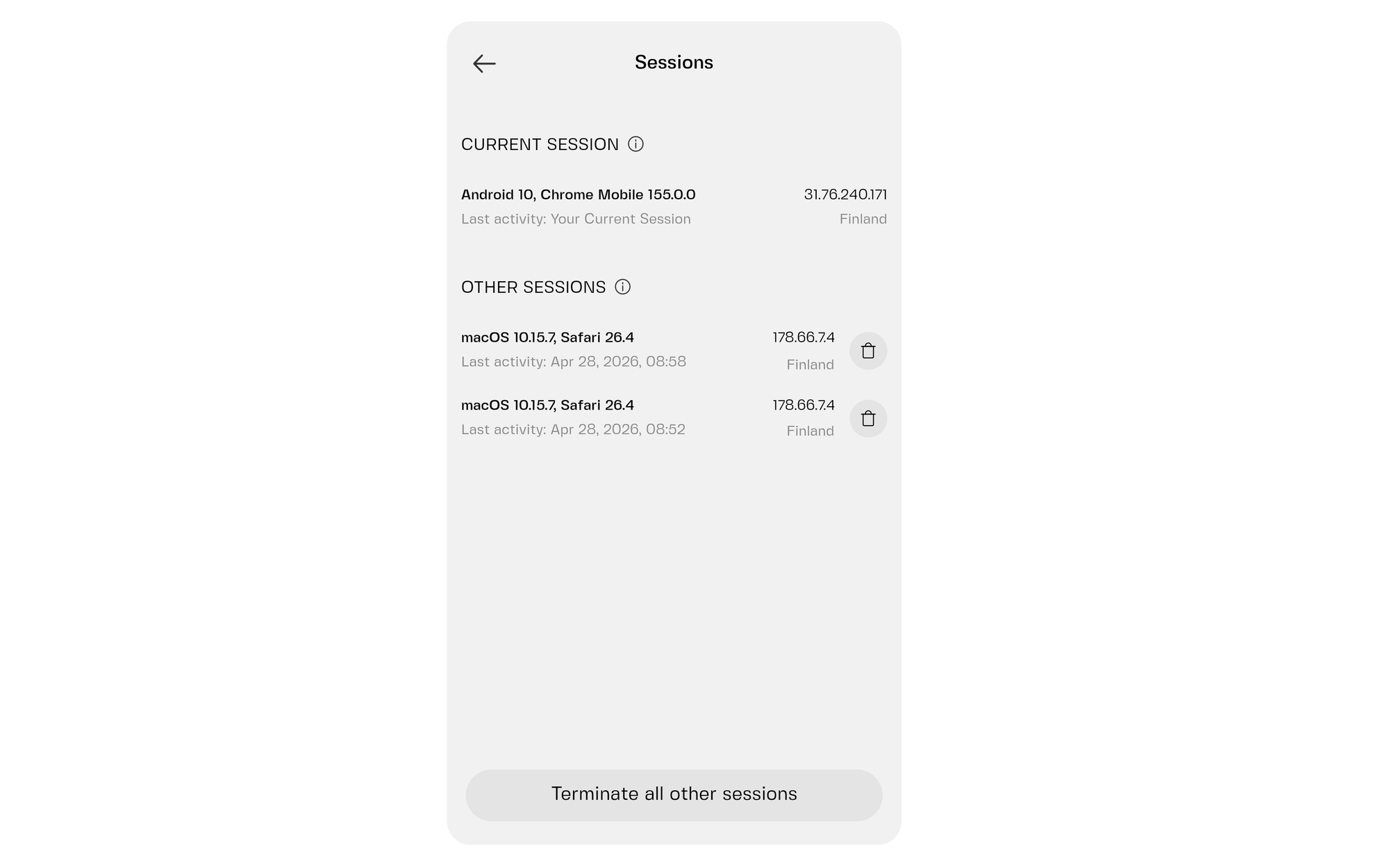
Look in your security settings for a list of devices or active sessions. In Clapp, it’s under Sessions in your Security settings. Check your current and other sessions for:
- Phones or computers you no longer own
- Devices you don’t recognize
- Locations that don’t make sense
Sign out anything you don’t use. On Clapp, you can delete sessions one by one or tap “Terminate all other sessions.” Repeat this every few months, or whenever you sell a phone or hand down a laptop. It takes one minute. While you’re at it, check any third-party apps or services connected to your account and remove what you no longer use.
Step 5: Protect what’s around your crypto app
Your crypto app depends on other things, and those need care too.
- Your email. It’s the master key, since whoever controls it can often reset your passwords. Give it a unique password and 2FA, and keep it away from newsletters and old accounts you no longer use.
- Your phone. Set a strong screen lock, keep the system updated and install apps only from the official stores. A phone with no lock is a crypto app with no lock.
- Your phone number. Ask your mobile carrier whether you can add a PIN or a SIM-swap lock to your account. It’s a small step that makes number takeovers much harder.
- Links and messages. Bookmark the official site and open the app from the official store listing, not from a link in a message. Fake login pages usually arrive through links.
- Recovery phrases and codes. Never share a recovery phrase or a 2FA code with anyone, for any reason. No real support team will ask for them. If a message creates pressure (“act now or your account will be closed”), that pressure is the warning sign.
If you’re curious where your coins sit once you’ve bought them, what happens after you buy crypto explains the different options.
Step 6: Have a plan for a lost phone
Nobody plans to lose a phone. But a plan you’ve already made is far calmer than one you invent at 2 a.m. This is the order that works for most people:
- Lock or wipe the phone. Use your phone maker’s “find my device” tool.
- Call your carrier. Ask them to block the SIM so nobody can receive your texts, including password-reset codes for your email.
- Log back in from another device. Use your backup codes or your synced authenticator, then change your password right away.
- Sign out all sessions. If the app has a “log out everywhere” option, use it. Otherwise, remove the lost device from your device list.
- Move your 2FA. Set it up again on your new phone and remove the old one.
- Contact the app’s support if you’re locked out. Expect to prove who you are. That’s normal and it protects you, because the same checks stop a stranger from claiming to be you. How crypto compliance works explains the thinking behind them.
With backup codes, step 3 takes a minute. Without them, it can take days while support verifies your identity.
Step 7: Check the platform, too
Your settings are half the picture. The other half is the platform you’re trusting with your money. It’s worth knowing what licensed and registered mean, because those words get used loosely.
You can read how Clapp approaches security on its security page. In short, this is how Clapp describes its side:
- Key custody. Private keys are never held in one place. Using multi-party computation (MPC) through Fireblocks, keys are split into cryptographic shares across isolated devices, so compromising a single server isn’t enough to move funds.
- Approval rules. A policy engine applies rules to every transaction. Large withdrawals need sign-off from multiple security officers, and automated logic blocks suspicious activity.
- Infrastructure. Servers aren’t exposed directly to the internet. Cloudflare’s firewall and DDoS protection sit in front of an AWS-hosted environment, with 24/7 monitoring.
- Testing and audits. Regular vulnerability scans, operations aligned with the CryptoCurrency Security Standard (CCSS), and SOC 2 Type II and ISO 27001 audits.
- Data. Information is encrypted in transit and at rest.
- Alerts. Smart alerts can warn you when your LTV nears critical levels on a credit line, though they’re a convenience, not a guarantee.
No setting removes all risk. Phishing, bad decisions and problems outside your control can still happen, so keep your habits sharp even after the checklist is done.
The one-page checklist
Copy this somewhere handy:
- ☐ Unique, long password stored in a password manager
- ☐ 2FA on, using an authenticator app or security key where possible
- ☐ Backup codes stored offline, away from your phone
- ☐ Login alerts and transaction notifications on
- ☐ Email protected with its own strong password and 2FA
- ☐ Device list reviewed and old sessions removed
- ☐ Phone locked, updated and ready to be wiped remotely
- ☐ Carrier SIM lock or PIN added
- ☐ Official site bookmarked, links in messages ignored
- ☐ Lost-phone plan written down
Twenty minutes now, fewer regrets later
Good crypto app security means spending twenty minutes now so that a bad day later stays a small one. A strong password, two-factor authentication with a proper backup, alerts you read and a lost-phone plan cover most of what goes wrong. That’s the practical answer to how to secure crypto account access without becoming a security expert.
Frequently asked questions
What’s the most important setting for crypto app security?
Two-factor authentication is the single biggest upgrade, because it stops a stolen password from being enough. Pair it with a unique password and you’ve covered the most common attacks.
Is an authenticator app safer than SMS codes?
Usually, yes. An authenticator app creates codes on your device, so it isn’t affected if someone steals your phone number through a SIM swap. SMS is still better than no 2FA at all.
What should I do if I lose my phone?
Lock or wipe the phone and ask your carrier to block the SIM. Then log in from another device using your backup codes, change your password, sign out all sessions and move your 2FA to your new phone.
How often should I check my connected devices?
Every few months is a good habit. Check straight away if you’ve sold a phone, replaced a laptop or noticed a login alert you don’t recognize.
Can any setup make my account completely safe?
No. Good settings lower your risk a lot, but they can’t remove it. Staying alert to phishing and never sharing codes or recovery phrases matters just as much as the settings.